Articles by "Computers"
Teckop covers Apps, Computers, Gadgets, Internet, Mobile news and reviews.
The Best Ever Media Player For Windows And Mac
5K is a new style media player that gives you a new way to enjoy yourself! 5K is a mixture of Music, Video, Radio, AirPlay media streamer and online Video Downloader.

5K can do more things than what you need from a media player,
  1. Download and play 1080p, 4K, 5K, MP3, AAC, APE, FLAC format videos and audios from 300+ online video audio sites and DVDs.
  2. Have built-in AirPlay sender and receiver to stream your audio or video from Apple Watch, iPhone, iPad or iPod on Windows or Mac OS.
  3. Rejoice your sense by playing Music and Videos from your media library.
  4. It renders refined playback of all Video Formats with multiple Subtitle tracks and Soundtracks. YouTube videos, HD Camcorder, Blu-ray videos and Satellite Radio impressively.
You can download the 5K media player from the official website. Once you install the software you can add the videos, music into your media library with '+' sign and browse the location of the folder where you have stored.

To arrange the songs order click on Grid view icon, which is on the right side of the search bar. You can customize the media player just by pressing 'F2' from the keyboard to change settings for Storage Location, AirPlay service, Video Downloader, and Subtitles.

On personal testing, we have found that the player can easily handle the best sound on every audio and video we played on highs, mids and lows.
Teckop covers Apps, Computers, Gadgets, Internet, Mobile news and reviews.
Evernote Gets Google Drive Integration On Android And Chrome
Evernote and Google Drive integrated to deliver smart work for a user. With the integration user can easily insert a Google Drive file without switching off from Evernote.

Evernote is running a Beta test program on Chrome for users from the official website to make ideas flow effortlessly. If any changes done to Google Drive files will dynamically sync and gets updated on Evernote. This new feature will help you to search files Google Drive files but after getting the files on the note-taking platform.

How to Add Google Drive on Evernote?

Opt-in to the beta test program on both Evernote for Android and Chrome that supports adding Google Drive files.
  • Evernote Web: Log in to Evernote account on Chrome beta test program.
  • Evernote for Android: Download Evernote app on GooglePlay store and make sure you log in to your Google Drive app.
For the first time process, Evernote will ask you permission for integration with Google Drive. When prompted click 'Connect' and then connect to Google Drive screen to authorize the access to Evernote account to your Google Drive files,

How to Add Google Drive Files to Evernote Notes?

Select the Google Drive icon and browse for the file on the window then click select.

How to Add Google Drive File Links into a Note?

Go to Google Drive, right click  to 'Get Shareable Link' on the selected file. Now then paste the link into a note.

As of now, the integration process can be done over beta test program only. However, Evernote will make this feature available on other platforms soon.
Teckop covers Apps, Computers, Gadgets, Internet, Mobile news and reviews.
WhatsApp Now Available To Download On Mac Or Windows PC
WhatsApp has introduced the Mac and Windows PC version app to stay connected with contacts anytime and anywhere. Previously users can access the app using WhatsApp Web to open on their desktop.

The company has posted on a blog post

Unlike the old style of WhatsApp Web, the desktop app is an extension of your phone and the app mirrors conversions and messages from your phone.

The desktop version is available for high-end versions of Windows 8 and Mac OS X 10.9 operation systems and is synced with WhatsApp present on your phone.

To download the app, visit WhatsApp official website to download the app for your desktop. Then open and scan the QR-code using the WhatsApp app on your phone by going on to the settings menu.

Similar to WhatsApp Web, this app lets you chat with your loved ones also enables you to share files, photos, videos and more without removing the phone from pocket or charging.
Teckop covers Apps, Computers, Gadgets, Internet, Mobile news and reviews.
Turn Your Laptop Into WiFi Hotspot To Share Internet
In today's life, WiFi has become part of human life along with Internet Connection. Windows OS is the best option for creating a wireless internet connection and now we are going to learn how to turn Laptop into WiFi hotspot to share the internet for free.

To connect a Wireless WiFi device, you need to provide the name and enter the password of your network, choose connection you want to share with and you're done.

Now we are going to create a WiFi hotspot connection in Windows OS which can easily detectable by Android over WiFi. A new windows software called "mHotspot", which creates virtual WiFi hotspot connection on Windows OS.

mHotspot can share any type of internet connection like LAN, Ethernet, 3G/4G Datacard or WiFi from your Laptop. IT is a tool that creates infrastructure network which helps in converting any Windows OS internet connection into virtual WiFi connection for free.

The software is available for free, easy to install and simple to use. Unlike other connectivity tools which frequently disconnect every 30 minutes and the tool is virus free.

How To Turn Laptop Into WiFi Hotspot To Share Internet?

  1. First of all, you need to download mHotspot from the website.
  2. Install and run the software tool (restart required).
  3. Check whether internet connection is turned or no, if not then switch it on.
  4. Open mHotspot software and enter your hotspot name and password.
  5. Then choose connection to start sharing with all other devices.
  6. Now go to control panel and select Network and Internet.
  7. And select Network and Sharing Center.
  8. On the left side, click on Change adapter settings to select Local Area Connection 2.
  9. Now right click to select properties, under sharing tab select internet connection sharing check box (below) to allow other networks to connect.
  10. Click OK and enjoy/the shared internet access on your smart devices.
If any issues, restart your Laptop and Internet connection router and turn them back to resolve the issue. You can also ask you from the below comment section.
Teckop covers Apps, Computers, Gadgets, Internet, Mobile news and reviews.
Top 10 Tips And Tricks For Enhancing Your Internet Surfing Experience
Most of the desktop users surf internet regularly but doesn't know how to use it properly with available shortcuts. Here are the top 10 tips and tricks for enhancing your overall internet surfing experiencing.

Use Tabbed Browsing

When browsing the internet, it’s highly advisable that you take full advantage of tabs. While reading an article or browsing a website, it’s not uncommon for users to stumble upon a link that interests them. With tabs, you can open such links in a new tab, without interrupting your current surfing experience.

The quickest way to open a link in a new tab is to hold down the Ctrl key and left click (with your mouse) on the link. Additionally, you can open a new blank tab by pressing Ctrl + T.

Don’t Use the http:// Part

When typing a website address into your internet browser, discard the http:// portion. For example, instead of typing http://www.teckop.com into the Address Bar, just type teckop.com.

Another faster method entails typing teckop into the URL Address Bar and pressing Ctrl + Enter.

Use Add-ons

All of the latest browsers grant the user with the ability to enhance their surfing experiencing through the use of add-ons. These add-ons are effective to dramatically increase the functionality of the browser. Weather plug-ins, ad blockers, download accelerators are just some of the many cool features available to you.

Use an Alternative Browser

For first-time computer users, it’s not uncommon for your first introduction to internet surfing to be on the Internet Explorer browser (for Microsoft Windows users). That’s not to say, there’s anything wrong with Internet Explorer, but that should be for you to figure out, by trying out all of the top internet browsers.

Take Advantage of the Search Engines

Try and take full advantage of all the capabilities of the major search engines. If you are having difficulties finding something, then searching, while using quotes within the search terms is something you should attempt.

For example, if you were to search for Google Help without quotes, it would return results for both Google and Help. However, using the same search term with quotes like “Google Help”, then it would only return results for titles with Google Help in them.

Keep Your Browser Up To Date

Internet browsers are capable of supporting plug-ins which are designed to increase their capabilities. For example, the Adobe Flash plug-in enables the browser to view flash content. Keeping the browser up-to-date involves not only updating the browser itself, but also the many plug-ins that are required to keep your surfing experience both secure and stable. 

Bookmark Pages

It’s not uncommon for a user to find an amazing website, only to forget the sites URL the very next day. This is why bookmarking websites are so important. When you bookmark a website, it will create a little shortcut to that site on your toolbar, which you can use to return to the site, with a simple click of your mouse.

The method of bookmarking your pages tends to vary, depending on the internet browser that you’re using, but the general rule remains the same. With that said, the quickest way to bookmark a page is to press Ctrl and D, this should bring up the bookmark menu applet, from where you can name the link and specify its storage location.

Update Your Security Software

Probably the last thing we think about, but crucially important. A good antivirus scanner can be the difference between a properly working system and one with viruses, errors and various other negative vices. Always ensure your antivirus software is running and up-to-date with the latest virus definitions.

If for some reason you do not have an antivirus scanner on your computer, then I recommend you immediately purchase and download one today.

Search Directly From the Browser

One way of making your surfing experience truly seamless is by using the URL address bar as a search engine. Simply type your queries into it and it should immediately give you the search results using the specified search engine.

Most internet browsers are configured to default to Google, but it is possible to change this. There are a number of search engines out there, so choose whichever works best for you.

Use Online Services

There are tons of different online services that you can use to enhance your overall computing experiences; services such as email, online storage, word translation, are just some of the many cool things that you can take advantage of, while online.
Teckop covers Apps, Computers, Gadgets, Internet, Mobile news and reviews.
Google Drive Now Let You Sync Selected Files And Folders
Google Drive announced the Google Drive app for PC and Mac which will allow users to sync all the files and folders present on any of the device.

The sync will only take place with "My Drive", this section contains all the files and folder which you have uploaded including the Google Docs sheets and slides that you open. You can start synchronizing the app once everything gets synced between your device and My Drive.

How to Pause and Resume syncing?

Whenever you want to pause and resume syncing between devices you can do it easily.

1. Pause syncing

If the syncing is taking much time on your Mac or PC and drive you can pause the feature.
  • Click on Google Drive icon
  • On Mac; you can found the icon on the menu bar at the top right corner of the desktop screen.
  • Similarly on a PC, you can find the icon in the taskbar in the bottom right of the desktop screen.
  • Click on the overflow icon in the top right by tapping on 3 dots.
  • Then click Bose.

2. Resume Sync

If you want to start the sync again option it will again resume the syncing effect.
  • Follow the same process to earn money and Click on Google Drive.

See sync in action

You don't have to set up syncing other than connecting to the internet data. If you want to see the status of the app which you are syncing CPU can see them.

How much bandwidth does the drive use?

You can increase or decrease the bandwidth used by Drive while syncing your Mac or PC.
  • Now follow the same procedure, after step 2 select preferences.
  • Then go to advanced tab, to choose limit you need click on radio button next to level to and use the app with actions depending on the user data,
  • To use full bandwidth for Google Drive you need to click on radio button to don't limit.
  • Then click on apply.
Note: Changing the bandwidth rate for downloads or uploads to a higher rate than your internet connection may slow the other programs which are running using the internet.
Teckop covers Apps, Computers, Gadgets, Internet, Mobile news and reviews.
Uninstall QuickTime Player Now
QuickTime player was built by Mac OS and later developed to support on Windows OS. The software can be used on Windows 7 and Windows Vista, but if installed on other versions of Windows it may not offer full features and support.

On Thursday, Trend Micro Inc said
We have uncovered two critical vulnerabilities on QuickTime player for Windows OS. That could leverage the launch attacks on PC and Users data if users visit a malicious page or open the tainted file.
As per the report received from the security company, US Government recommend users to uninstall the software from their PCs. The vulnerabilities were found only on Mac computers, so Mac users can continue using the software.

Trend Micro Inc said
We did not know of any cases where the bugs had been exploited by attackers but requesting Windows users to uninstall the software. Because Apple was ending the support for the product, which means it will not fix the bugs.
This would be best to uninstall before the PC gets attacked by unknown vulnerabilities.
Teckop covers Apps, Computers, Gadgets, Internet, Mobile news and reviews.
Google Photos New Easy Upload And Keyboard Shortcuts Features For Web
Google has updated Google Photos web app with two new features, easy upload and keyboard shortcuts. Google giant has introduced these features to save precious time of web users by uploading the photos from PC into an album directly, including shared ones.

The new update indicates users while opening the app with the clear brief description on how to use the new updated version. The keyboard shortcuts are categorized into General, Photo Editing, and Actions. Under these categories, the following options are inherited.

General

  • Left and Right arrows to display previous or next photo.
  • x will Select the photo.
  • Esc (Escape) button to go back or close or deselect the photo.
  • / (Slash) button to Search your photos.

Photo Editing

  • o (not zero its Oooo..) will show original photo not edited one.
  • a will apply auto enhance the photo.
  • up button + r to rotate the photo.

Actions

  • # (Hash) button will delete the photo.
  • e will edit a photo.
  • z or + and - to zoom in and zoom out the photo.
  • i will show and hide the info of the photo.
  • up arrow + delete a photo.
This is going to be more user-friendly and help all the web users to view and edit the photos stored in Google Photos app.
Teckop covers Apps, Computers, Gadgets, Internet, Mobile news and reviews.
Indian Government To Launch Its Own Operating System
The Indian government has made Bharat Operating System Solutions OS on Make in India Mission. BOSS is a Linux based OS which was launched in the year 2007, and the current version of this OS is 5.0.

BOSS was developed by National Resource Centre for Free as an Open Source Software (NRCFOSS) of India at CDAC in Chennai. BOSS supports 20 Indian languages and was developed keeping the mind on various security and operational issues.

BOSS was endorsed by the Indian government and adapted to implement in all government offices all over India. As the OS is made using Linux and was successfully certified by Linux Foundation. BOSS had been initially developed especially for PC, not yet announced about mobile OS.

As per Edward Snowden's,
India is one of the most watched nation in the world, especially by US and China. We have watched that most of the crucial information were stolen by Chinese hackers, and they were to break into Indian Government servers very easily.
For this main reason, BOSS developed the OS with Linux, where it provides more security than other OS. Indian Government to replace Windows with BOSS OS to build a better protection and security to its data.
Teckop covers Apps, Computers, Gadgets, Internet, Mobile news and reviews.
Stop Your PC Upgrading To Windows 10 Automatically
Many users of Windows 7 and 8 are so happy with their current version of Windows. This would be the primary reason for many users to stop the OS upgrading to windows 10 with unknown secret updates installed.

The grace of this Never 10 utility is that it does not install any software of its own. The utility software simply and quickly performs the required system editing its user.

The software displays different messages as below

  1. If the system is older than July 2015 release and configured, which means that the Upgrade Disable options are not present for this system. Then it will display a message and offers to download and install the required update so that windows can be configured and not upgrade itself to windows 10.
  2. If Microsoft's Get Windows 10 (GWX) had already downloaded secretly on the system in a hidden directory. Never 10 will find the exact count of the files download and allow users to remove all those files with a single click.
Since the utility simply configures and update the OS updates, it can be deleted after the system configured successfully.
Teckop covers Apps, Computers, Gadgets, Internet, Mobile news and reviews.
5 Super Simple Ways To Speed Up Your Computer
We keep our computer away from the virus but still sometimes it boots very slow and don't show up the desktop screen for a long time. But don't get worried, you need to follow few steps to fix these issues on Mac or PC.

Let's do follow these steps which show you some difference before how the computer performance was before and now.

1. Keep desktop screen clean

This would be the best way to speed up your computer by removing the unnecessary icons or files. The more files you keep on the desktop, the more you computer boot time will increase. This will strain your RAM and slow down the processors and performance.

Instead of deleting those files, you can also move those files to the hard disk drive as keeping them on the desktop is for doing temporary work. So this is the best time to move your files and folders to the hard disk.

2. Disable unwanted services on start

Even if we exit the programs after you use them few of them will run in the background. By default, the apps or software will have an option and ask for launch on startup. Sometimes we forget to uncheck the option but no need to worry we can solve this issue by using run command.

Windows:

Just click start icon and search for run command then type 'MSConfig' without quotes. Then click ok and you can see a window appearing on the desktop screen. Now you need to choose Startup where you can see the apps or software's which are running on startup. Just uncheck the option then click ok and close the window. Here the computer will ask to restart simply restart and you can see change in speed computer loading time

Mac:

Open the system preferences and go to Users and Groups, then under the username switch the tab to passwords to login items. Here you will see the list of programs which are running on the startup. Now click the lock at the bottom left and put the password to make changes. Make sure that you remove the list of the apps or software that you don't wish you start at boot time of the computer.

3. Clean you disk

Cleaning the downloaded program files, temporary internet files, debug dump files, recycle bin, system error memory dump files, temporary disk files, thumbnail and other error report files from the disk will improve the speed of the computer. Doing this for all the disks will make the computer local disk drives load faster.

You need to click on the start icon and then search for 'Disk Cleanup', then selecting the drive which you want to clean and click ok button.

4. Uninstall application that you don't need

When installing the drivers and computer software from the default manufacturer will install few unwanted software applications. This would put some pressure on RAM which effects on computer performance for installing those unnecessary apps.

To do this you need to go to control panel and click on Change or Remove a program to see all the installed application your computer. Then just select the application and click Uninstall the application.

5. Clear all the temporary files

When you open the browser and use it for a while to browse something online when connected over the internet. Few temporary files and cookies get stored on the browser and on C drive.

We can remove the entire browser saved data from browser settings and select privacy or clear history. And it will show all the cookies, saved passwords, saved data and other temporary files then click clear history. This will not only speed up your browser but also increase the speed of the computer.

Hope you all follow these simple tips and speed up your computer.
Teckop covers Apps, Computers, Gadgets, Internet, Mobile news and reviews.
Google Photos Editor Gets New Update and Makes It Easier To Use
Google Photos has got a new update which can help users to edit images faster. Currently, the update is limited for desktop users only for now and later may available to download on app stores.

Users can edit the images from the app when swiping between images, and as soon as the user moves away from edit mode it will automatically save the image. There are many additional features which can make you undo the changes after saving the image by clicking "Revert to Original" and crop the images with different aspect ratios from original to 4:3, 16:9 and square. Changing the exposure levels and removing red-eye corrections.

In the last month, Google has announced that it is going to shift the focus from Picasa to the new updated Google Photos service. As we all knew that the photos and videos in Picasa online albums will be automatically displayed in users Google Photos account.

Google Photos chief said
By March 2016, we will no longer support Picasa Desktop application. For those users who have downloaded the software can note that the application is going work just like today. But there won't be any support or updates provided to the users from the end date.

If you would like to switch to Google Photos you can continue uploading photos and videos from the desktop by downloading the application from photos.google. We apologize for the inconvenience but we assure you that we are doing this with the aim of providing best photos experience possible by us to you.

Just like before it is available for free to download for everyone and also offers unlimited cloud storage for your photos and videos as well, with the integration of Google Drive.
Teckop covers Apps, Computers, Gadgets, Internet, Mobile news and reviews.
Install A Plugin To Stop Websites Tracking You Online
Every online users must check for security before entering any details or websites. Some of the websites may trace your details and location which relates to user security.

Eff has announced their release of Privacy Badger 1.0 version for Chrome and Firefox browsers. This extension automatically blocks all the spying ads and invisible trackers that would spy your browsers. The company has release their first version before and now they have released the latest verion with new improvements including UI improvements, detecting super-cookies, browser stability, translating up to 4 languages and browser fingerprinting.

How Does it work?

As the user install the plugin on their browser Chrome or Firefox, Privacy Badger looks for the third party domains to check whether they appear or not appear to be tracking you. It conclude that third party domain is a tracker and blocks the future connections.

For certain websites, if this plugin blocks the entire domain it would break the website functionality. If the Privacy Badger plugin blocks the licensebuttons.net and creativecommons buttons would no longer load. In these cases, it will block the domain cookies and settings but not the embedded content.

Privacy Badger 1.0 works with Do Not Track policy announced earlier this week by Adblock, Eff, DuckDuckGo, Disconnect, Medium and Mixpanel, Until the online tracking industry changes its ways, the only option for user is to use these types of tools to protect themselves.
Teckop covers Apps, Computers, Gadgets, Internet, Mobile news and reviews.
Need for Speed Most Wanted Standard Edition Is Now Free On Origin
Need for Speed is commonly known as NFS, developed by EA Games and now it is available for free on Origin as a part of EA's 'On the House program'. The game was released in the year 2012 and got much craze for each one of us to chase the cars.

The NFS Most Wanted Standard Edition is available for free on 'Origin', client of EA Games. Users can download the game by entering on the website, after that you need to enter the registered email id of EA Games. If you don't have the account previously registered at EA then you click signup now to download the game on your PC.

Currently, the Game is available for free so users need to grab the grab it as possible, as the site says
Make sure to act fast because On the House program specials can appear and disappear at any time.
NFS Most Wanted enables you to chase your friends online and has features like non-stop multi-player, online driving, beat your friends, urban handling and also features one of the best songs ever in the race. It has lots of cars for users to upgrade while playing the game with various types of environments present. The look and feel will make you addicted to the game from starting till you reach the ending point.

There might some lags issues due to more traffic who are playing at Origin. Go for it and experience the game with your friends online.
Teckop covers Apps, Computers, Gadgets, Internet, Mobile news and reviews.
Now You Can Try Windows 95 On A Web Browser
Microsoft developed the Windows 95 in the year 1995 and now after 20 years a developer named "Andrea" has created a website to use old Windows 95 on a web browser. You can see the above image displaying the age gap of 20 years from the invented date to reinvention date.

Windows has introduced many features which are Start Menu, Taskbar and more. Now we have thanked for the new feature Emscripted and DOS Box, and modern JavaScript runtime, where you can run easily on a web browser.

Microsoft has already discontinued the sales and service for Windows 95 on Dec 31, 2001. This website says that it is strictly for educational purposes because Windows 95 is a copyrighted piece of software.

The developer said
If I am sent a letter to desist or cease the website from Microsoft then I shall take down this website as soon as possible.
If you have a slow internet connection then it might take a long time to load this website because the setup files have to be downloaded (size around 47 MB gzipped). It may not run smoothly, rather it is running on emulated CPU.

However after doing all the things you can see same Windows 95 loading and making similar login sound. It's better to run Windows 95 now itself before it gets affected from copyright violating issues owned by Microsoft.
Teckop covers Apps, Computers, Gadgets, Internet, Mobile news and reviews.
Easy To Fix Safari Browser Crash Bug On iOS And Mac
Recently many of the users started facing crashing issues from Safari Browsers on their iOS and Mac devices. This bug has not only affected your device but also affected many others which caused slowing down the web browser or crashing again and again.

People found issues which switching new tab and when typing a URL in the address bar. Seeing these issues 'Steven Troughton-Smith' an iOS developer said that the crash bug was related to Safari's Search suggestions.

Fix Safari Browser Crash Bug

Mac Users

You can fix the issue by opening Safari and moving onto preferences. Then go to search bar and deselect 'include search engine suggestions'. In the last restart Safari and then you will see the change.

iOS Users

You should open Safari, go to settings on the app and find safari then turn off suggestions.

Conclusion:

The above tips should solve all your issues from Safari browser crashing bug. If still facing the same issue then uninstall the app and clear app cache and then you can see the result.
Teckop covers Apps, Computers, Gadgets, Internet, Mobile news and reviews.
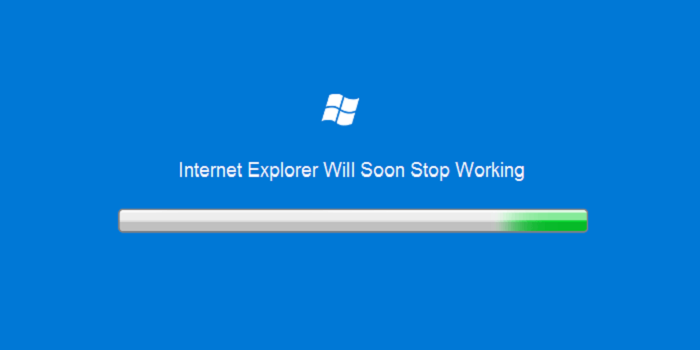
Microsoft Is Ending Support For Old Internet Explorer Versions
Internet Explorer is going to be stop working soon, as Microsoft has decided to end support for the old versions. This change may get risk for so many users who are still using 7, 8, 9 and 10 versions.

Recently Microsoft has launched their new browser named 'Edge' which runs only on Windows 10. Users of old versions can see a popup window showing update to IE 11 or Windows 10 to experience Edge browser.

Microsoft announced that "Beginning from 12 January 2016, only the latest version of IE 11 will get technical support and security updates", which may affect vulnerability to the old version of users. This change might make web developers to work hard for updating their responsive templates.

If you are still using old version so it's time to upgrade your browser to latest IE 11 or else have to go with other browsers like Google Chrome, Firefox, Safari and etc.., which support any operating system.
Teckop covers Apps, Computers, Gadgets, Internet, Mobile news and reviews.
Best Computer Tips That Everyone Should Know
Many of the users who are using Laptop of Computer try to know more tips and shortcuts. These tips will really make the work simple and fast also improve your skills. Among the mentioned tips, you may find few are useful which you never know before.

We have found and used these tips which made to work in a smart way.

Screen Recorder

This really helps you to record your screen using Run command by pressing Windows button and R. The command will start working when you type command 'psr' and click enter. A small window will appear on the screen to start recording and save after finishing your work.

Running at Startup

You might observe that PC is starting bit slow when you turned it on. This happens when there are many apps running at startup, we can stop them using Run command with 'msconfig', here you can see a tab called "startup". Click on it and disable the apps which you would like to stop starting. Then you need to restart to make the tip start working on your desktop or laptop.

Delete a complete word

This tip is useful when you are working writing articles or magazines. You can delete the complete word using 'Ctrl and Backspace' with this you can make the work easy without wasting a second.

End a not responding program

Sometimes the system gets struck when the application not responds. We can end those programs by pressing 'Alt and Ctrl and Delete' buttons at once, here you need to go with Start Task Manager to end the program from the application tab using right click.

Basic information of system

This is the place where we can see the total information of the system by using 'Windows and Pause Break'. It displays the system Rating, Processor, RAM, System type, Computer Name and Windows activation details.

Adding www. & .com to a URL

Instead of typing www.teckop.com you can just type teckop in your address bar after that press 'Ctrl and Enter' to move on to 'www.teckop.com'.

Close a Window

To close any window we normally go with the mouse cursor, but there is a tip that can close your window using 'Alt and F4'.

Rename anything

Using 'F2' you can rename any file and start typing the new name which you would like to change.

Restart, Sleep, Shut Down or Hibernate

This tip will make your work easier by just typing 'Window' button and you can see shut down button with down arrow to select the option which you want to go with.

You can also see our blog post which explains about best 10 keyboard shortcuts.
Teckop covers Apps, Computers, Gadgets, Internet, Mobile news and reviews.
Delete Web And Activity History From Google Using Browser
Google create a web and app history backup to know about the search keywords typed on Google search engine. This is just to show you the insights on searches in a day with total searches and search clicks on their search engine.

If you open your Google account then you can easily see the clear list of activities traced by Google using the browser. It will trace all the search data from all of its products. You can delete all the backup history from Google and can do the follow the same every time when you want to remove all the data.

Steps to delete web and activity history from Google:

  1. Login to your Google account (any product).
  2. Open the Google History page from here.
  3. Here on the left side panel, you can see the different types of categories like Web and App history, Voice and Audio history, Device information, Location history, YouTube watch history and YouTube search history.
  4. On selection of each category you can see 3 dots on the top right.
  5. Click Delete options, you can choose any option like today, yesterday or advanced and click delete.
  6. That's it! Follow for all the categories and you have cleaned all the Google backup history data.

Note:

Do the same once in a month if want to delete all the search history from all the Google products.
Teckop covers Apps, Computers, Gadgets, Internet, Mobile news and reviews.
How To Make Browser Work Smoothly On Any Device
A web browser is the software application to present the information from the resources available on the World Wide Web. The browser helps display the links on the web page like a video, image or content.

Browsers sometimes crash and display the content very slowly due to some plugins and extensions. To make your browsers work smoothly on any device then you to check the below five things.

Internet Connection

Make sure that the internet connection is on without any issues after necessary configuration. The browser should be updated whenever the new version is available. The browser can work smoothly when there is no distortion in internet connection.

Plugins

These are the tools which we use for doing some online works instead of having the software. When installing the browsers, few plugins will be installed on the device but most of them are not much useful in daily life. You can disable the unnecessary plugins just entering into settings or 'about:plugins', this not only fasten your browser but also decrease the size on the drive or app.

Extensions

There are many extensions are available on all types of browser company web stores which work like a small size of the software tool. These extension tools consume more size and internet data on your device. You can find the tools or add-ons or extensions in settings to disable the extensions.

History

Browsing cache data will be increasing on day by day basis, when you search for something it will store in the history to make your search easily and fast but will slow down your browsing data. You can remove the total history or browsing data from the beginning of the time to till today in settings.

Malware or Virus

Always use a best and top rated antivirus software on your device to secure your device, so that no file gets corrupted even browser. This will help in blocking the links which are not good and contains the virus. The malware or virus attacks mostly start on downloading the files on the internet which from different types of app stores.